
Staff, student and member IDs on a phone: how they work
On this page
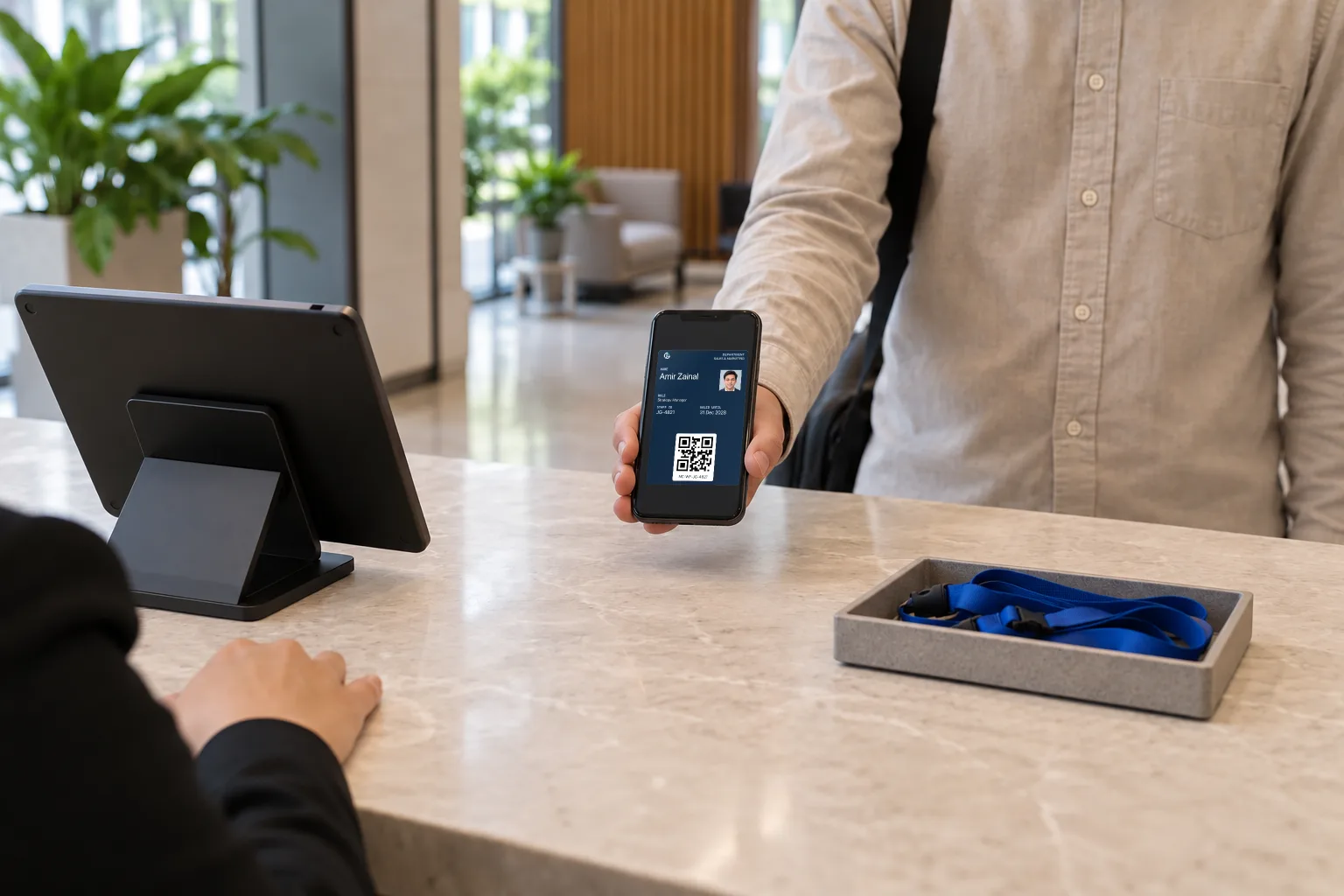
A staff, student or member ID on a phone works like this: someone scans its code with their own phone, and your organisation's page for that person opens and says whether the ID is valid at that moment. So it proves one thing: that you still count the person named on it as one of your own. A staff ID says this person works for you today. A student ID says they are enrolled. A membership ID says they are in good standing. It carries your word and nothing beyond it. It is not a government credential, it does not open a door, and it is no help when the impostor is on the telephone.
A lanyard card printed in March looks just as valid in October, after its owner has left. An ID read from your records each time it is checked does not.
What it can prove
It shows, face to face, that a person is yours today. It is not legal identity, a door pass or a caller check.
| The job | A phone ID | What it depends on, or what to use |
|---|---|---|
| Showing someone, face to face, that this person is one of yours today | Yes | The checker scanning it on their own phone |
| Showing that a leaver's ID has stopped | Yes | You suspending or cancelling it, or its last day passing |
| Proving legal identity, age or nationality | No | A MyKad, a passport or another government document |
| Getting through a door, a gate or a turnstile | No | An access system under Apple's or Google's access programmes, with NFC readers |
| Checking a caller, an email or a WhatsApp message | No | A number or a public register that you publish |
native.cards calls this kind of card a Digital ID. It has no connection with MyDigital ID, the government's digital identity initiative.
What a scan opens
The checker scans on their own phone, and a live page from your records gives the ID's state at that moment.
- Holder signs in and opens Show my ID
- Checker scans it with their own phone
- Your page opens with the name and Valid
- “Checked just now” counts upward
Every ID has a code, and the code leads to one place: the ID page your organisation publishes for that holder. The holder signs in with their email address (there is no app) and opens Show my ID. The screen shows the code with their name, their photo if you have added one, and the date the ID is valid until. The person checking points their own phone's camera at it.
What opens is a page with your organisation's name and logo, the holder's name, the line you chose to put beneath it (usually a role) and a state. For a current ID the state reads Valid, with "Confirmed by" and your organisation's name under it. At its foot the page says it is served by native.cards.
The checker has to scan the code and read the answer on their own phone. A page on the holder's screen might be a picture taken last month, when the ID was still good. Under the state, a line reads "Checked just now" and counts upward. The page's own note on the word Valid says why:
Read from [your organisation]’s records when this page opened, at [the time]. A screenshot can’t show the time counting up; a live page does.
When an ID is no longer current, the state says so: Expired, Suspended or Cancelled. The public then sees only the name and the state, with the ID's number and dates if your page shows them. There is no photo, no role and no section of details.
The code is lasting. It stays the same from one showing to the next, and the dashboard gives it to you as an image you can print on a plastic card. A copy does not make a second ID. It opens the same live page, with the same name and face, saying what is true now. That is also why the checker's phone needs a data connection: no signal, no check.
Records behind a scan
native.cards checks no identity documents. Who gets an ID, the photo, leavers and copied codes are yours to manage.
Four things decide what a scan is worth, and each is yours to get right.
Who received the ID. native.cards does not examine anyone's identity documents. The name on an ID is whatever your team entered or accepted when issuing it. So an ID can stand behind "this is our technician" and never behind "this is the name on their MyKad". An ID goes to someone who has joined your program with an email address, or to an address you invite, and then it "is issued the moment they join with that email address". Use an address you already vouch for: a work mailbox, or the one on your membership register.
The face. An owner or admin adds the photo to each ID. A holder cannot upload their own. Where the photo is set for anyone to see, the checker has a face to compare with the person in front of them. Without one, the scan shows that a name is current, and nothing ties that name to whoever is holding the phone.
Leavers and lapsed members. When issuing, you choose how long an ID lasts: 1 year, 2 years, 3 years, Until a date or No end date. With a last day, "The ID stops working by itself after its last day." With none, the form says "It works until you suspend or cancel it", so the page is only as current as your leavers' checklist.
An owner or admin can also stop an ID by hand, giving a reason each time. Suspend stops it at once and keeps its details. Reinstate makes it work again straight away, if its dates still allow. Cancel ID is permanent: the holder is emailed, and giving them one again means issuing a new ID.
A membership body can let the date do the work. End every ID with the subscription year, and each holder is emailed once in the fortnight before. When the fees are in, set a new last day for those IDs together.
Copies. If a code may have been copied or lost, Replace this code gives that ID a new one and Replace every code does it across the program. Anyone scanning an old code is told "This code has been replaced".
Not a door key
It is a code and a page, not a tap. Opening doors takes Apple's or Google's access programme and NFC readers.
A phone that unlocks an office is a different product, and neither Wallet lets an issuer simply add it.
Apple's page on keys in Wallet says: "To participate in the program, partners must complete a business and technical diligence process." Its developer documentation says of tapping: "Adding NFC to a Pass requires a special entitlement issued by Apple." NFC is the short-range radio a phone uses when it is tapped on a reader. Google's corporate badge needs the employee's service provider's app on a phone with "Android 9.0 or higher, with NFC turned on", and a building with "NFC-enabled readers". Its campus ID is "supported by participating universities in the US and Canada".
A native.cards ID is a code and a page. It holds nothing a door reader can read and is not tapped on one, so it does not replace a building's access card. Admitting guests to an event is a different card again: see Event tickets on a phone: how they work.
Scams at a distance
An ID scanned in person cannot stop a phone scam, so publish on your own website how to check your people.
In June 2026 the Inspector-General of Police gave 66,204 online fraud cases for 2025 and said phone scams "remain the main threat", at 28,388 cases. These are reported cases, with no count of how many involved someone posing as a company's representative. They do show how much fraud happens at a distance, where an ID that must be scanned in person plays no part.
For fraud at a distance, organisations publish a way to check back. TNB's page on impersonation says customers can verify a person "by calling TNB CareLine at 1300-88-5454" or through its official Facebook and X accounts, and mentions no ID card (read 10 October 2026). The Malaysian Bar sends the public to its Legal Directory and states: "If an individual is not listed in the Legal Directory, he/she is not authorised to provide any legal advice or services to the public."
Both routes work because they are published, and a phone ID needs the same. native.cards approves each business before its dashboard opens, but a householder at a gate cannot know that. They have no reason to trust a QR code until your own website has said that your people carry one, what a scan should show, and what to do if it shows something else.
Where a public register exists, a Register check section puts a button to it on the ID page, with the holder's registration number beside it. The checker then confirms the person somewhere you do not control.
Who sees what
For each detail and the photo, you set what the public, a passcode group and your signed-in team can see.
| Who checks | What they see | The setting |
|---|---|---|
| Any member of the public: a householder, a client | The details marked Anyone who opens it | No passcode |
| A known group outside your organisation: a site's guards, a venue's front desk | The same, once they have entered a passcode you gave them | A passcode you change, or A passcode that changes on a schedule from every 12 hours to every 30 days |
| Your own team, signed in | Also the details marked Holder and staff | Nothing to set. Record a check puts their check in the log |
You set Who sees it for each detail in the ID page builder, and Who sees the photo too. The builder starts from one of 45 templates, from company staff and home service crews to committee members and students, and you can change everything a template starts with.
A householder checking a technician needs the name, the face, the employer and what the technician is there to do. They have no use for a staff number or an emergency contact.
Who fills it in is Your team or The holder. Holders give their own details on a set-up form the first time they open the ID, tick any statements you wrote, and can change those details later.
An ID can also be a Wallet Card, where you have Apple Wallet or Google Wallet turned on. The card carries the short facts (name, ID number, role, department, last day) and not the photo. Its code is not the one on Show my ID. Your own signed-in team reads it with the dashboard's Scanner, and it does not open the ID page on a stranger's phone.
Views and reports
Every opening of an ID page is listed for a year, and a reader can report a concern to you.
Views lists every opening of an ID page for a year: by scan or by link, on what kind of device, and what was shown. It cannot name a member of the public. Reports and requests collects what readers send through Report a concern about this ID, which goes to you and not to the person shown, and what holders ask you to change.
The details on an ID and the record of its views are personal data about your people. See Your members' personal data: what the law expects.
Do this next
Write the public notice before the first ID
Draft the paragraph your website would carry under "How to check our staff" (or members, or students). Say who carries an ID, that a scan on the checker's own phone opens a page served by native.cards with your name and Valid on it, and which number to ring if anything looks wrong.
If you cannot write it, because the people who need to check are on the telephone or at a turnstile, a phone ID is the wrong tool for that job. If you can write it, the paragraph has already told you which details belong on the public page.
Sources 8
- Bernama, “Online Scam losses Surge To RM2.97 Billion In 2025 - IGP”, 15 June 2026 (figures as reported by the Inspector-General of Police) bernama.com
- Apple, Keys in Apple Wallet (read 10 October 2026) learn.wallet.apple
- Apple Developer Documentation, Wallet Passes: Pass.NFC (read 10 October 2026) developer.apple.com
- Google Wallet developer documentation, Corporate badge (last updated 24 July 2025; read 10 October 2026) developers.google.com
- Google Wallet developer documentation, Campus ID (last updated 12 March 2025; read 10 October 2026) developers.google.com
- Tenaga Nasional Berhad, Impersonation Scam (read 10 October 2026) tnb.com.my
- Malaysian Bar, press release “Understanding the Legal Profession: Who is a Lawyer?”, 1 October 2025 malaysianbar.org.my
- MyDigital ID, official site (read 10 October 2026) digital-id.my
Written by native.cards, . Found a mistake? The publishing policy says how to tell us.